How to Set Up an E-commerce Packing Station That Ships Orders Faster (2026)
A practical guide for Malaysian online sellers: how to lay out your packing area, equip each bench, split work into stations, batch pick, scan every parcel and track packing performance.
- Published
- Reading time
- 11 min read
- Language
- English

On this page 12 sections
- What is a packing station?
- Signs your packing area needs a proper setup
- Step 1: Plan the layout as a one-way flow
- Step 2: Equip each packing bench properly
- Step 3: Split packing into clear stations
- Step 4: Pick in batches, not one order at a time
- Step 5: Scan every parcel before it leaves
- Step 6: Hand over to the courier with a manifest
- Step 7: Track packing performance every week
- Common packing station mistakes to avoid
- Frequently asked questions
- Pack and hand over every order from one system
Most packing problems in a growing online store are not caused by lazy staff. They come from a packing area that was never designed: products on random shelves, tape and boxes on the floor, one table where picking, packing, labelling and courier handover all happen at once. It works at 30 orders a day. At 150 orders a day it produces wrong items, missing parcels and a team that stays late every night.
This guide shows you how to set up an e-commerce packing station that holds up as order volume grows: how to lay out the space, what equipment each station needs, how to split the work into clear stations, how to scan every parcel, and which numbers to watch each week.
What is a packing station?
A packing station is a dedicated spot where an order is turned into a parcel that is ready for the courier. In a small business it might be one bench. In a busier operation it becomes a short line of stations, each doing one job: picking items from the shelf, packing them, checking and labelling the parcel, and handing it over to the courier.
The goal is simple: every order leaves with the right items, the right label and a record that it was packed. Speed comes from removing walking, searching and guessing, not from asking people to move faster.
Signs your packing area needs a proper setup
| What you notice | What it usually means |
|---|---|
| Packers walk around the room looking for products | Shelves are not organised by SKU or by how fast items sell |
| Customers receive the wrong variant or a missing item | Nobody checks the parcel against the order before it is sealed |
| Parcels are printed but never collected | There is no step that confirms each parcel was packed and handed over |
| Couriers wait while the team finishes packing | Work is not split, so labelling and handover happen at the last minute |
| You cannot tell who packed a wrong order | Packing is not recorded per order or per packer |
If two or more of these sound familiar, the fix is less about hiring and more about structure. For the bigger picture of the whole flow from order to delivery, see E-commerce Order Fulfillment in Malaysia: The Complete Guide.
Step 1: Plan the layout as a one-way flow
Arrange the space so a parcel moves in one direction: from stock shelves, to the packing bench, to the check and label point, to a handover area near the door. When items and parcels never travel backwards, people stop bumping into each other and finished parcels never mix with unfinished ones.
- Stock zone: shelves or racks, labelled by SKU, with fast-moving products closest to the packing bench.
- Packing zone: one or more benches with all packing materials within arm’s reach.
- Check and label zone: a small table for checking the parcel against the order and sticking the AWB (airway bill) label.
- Handover zone: a marked area or bins near the exit, separated by courier, where sealed parcels wait for pickup.
Step 2: Equip each packing bench properly
A good bench means a packer never has to leave their spot during a batch. Keep the same layout on every bench, so anyone can step in and work at the same speed.
Packing bench checklist
- A sturdy table at a comfortable standing height
- Boxes and flyers in the two or three sizes you use most
- Tape dispenser, cutter and fragile stickers
- Bubble wrap or paper fill for breakable items
- A barcode scanner or a phone with a scanning app
- A label printer, or a printed batch of AWB labels for that bench
- Good overhead lighting so labels and variants are easy to read
- A bin for damaged items or returns, kept away from fresh stock
Standardising box sizes also helps with courier costs, because parcel weight and size affect the shipping rate. If you are not sure which courier fits which parcel, read Parcel Gagal Dihantar? Cara Selamatkan Order Sebelum Jadi Return for the delivery side of the problem.
Step 3: Split packing into clear stations
When one person does everything for an order, mistakes are hard to catch and hard to trace. Splitting the work into stations gives every step an owner. A common setup for a small warehouse looks like this:
| Station | What happens here | Done when |
|---|---|---|
| 1. Pick | Items are collected from the shelves using a pick list | All items for the batch are in the tray or basket |
| 2. Pack | Items are wrapped and boxed for each order | Every order is in a sealed box or flyer |
| 3. QC & Label | The parcel is checked against the order and the AWB label is attached | The order is scanned and labelled |
| 4. Handover | Parcels are sorted by courier and handed to the rider | The courier has collected the parcel |
You do not need four people for four stations. In a small team one person can pick in the morning and label in the afternoon. What matters is that each step is done and confirmed in order, rather than everything happening at once on one table.
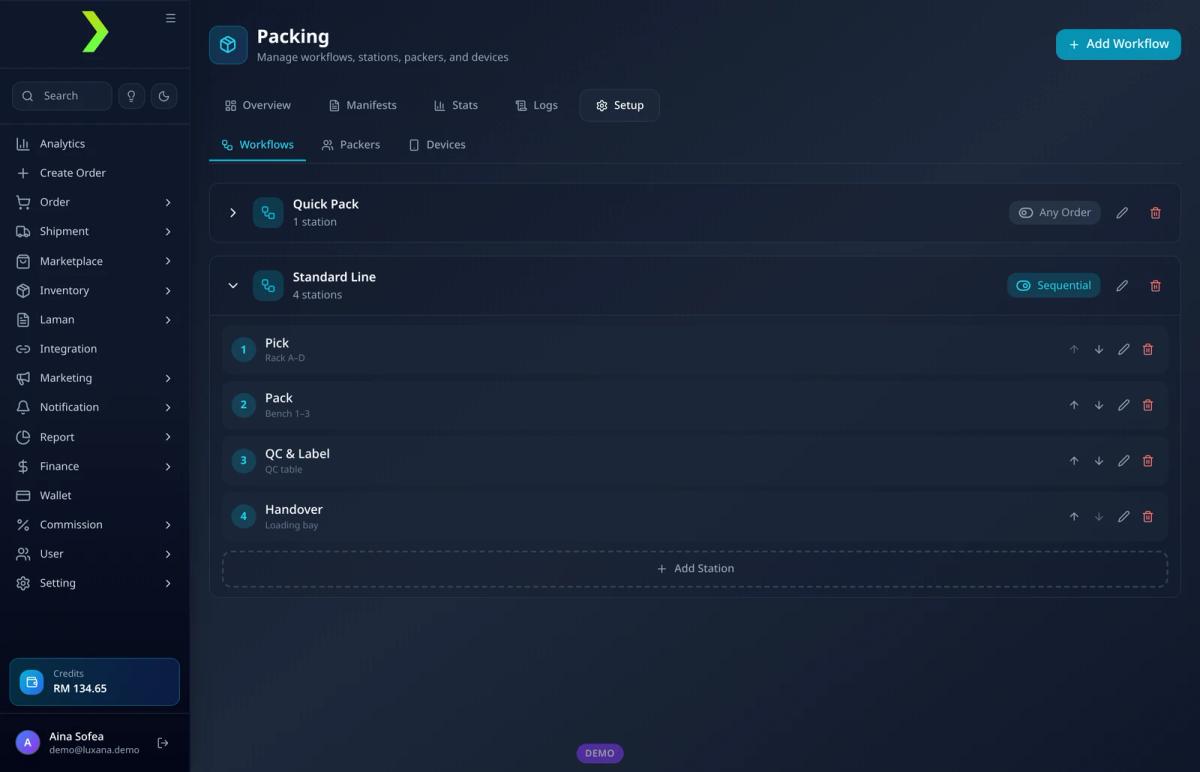
In Luxana, the Packing page lets you set this up as workflows. Each workflow is a list of stations with a location, such as “Rack A–D” or “Bench 1–3”. A workflow can be sequential, where an order has to pass each station in order, or set to any order, which suits a single quick-pack bench for small or urgent orders. You also register your packers and scanning devices, so every scan is tied to a person and a station.
Step 4: Pick in batches, not one order at a time
Walking to the shelf for every single order is the biggest time waster in most small warehouses. Batch picking means you print or open one pick list for a group of orders, collect all the items in one trip, then split them into orders at the packing bench.
A simple batch picking routine
- Set fixed cut-off times, for example 11am and 3pm, and group the orders that came in before each one
- Generate the pick list sorted by shelf location, so the picker walks the room once
- Collect items into a tray or basket for the batch
- Bring the tray to the packing bench and sort items into individual orders
- Pack orders with the same product together, such as all single-item orders of one SKU
Batching also makes printing AWBs easier, because you push orders to the courier and print labels per batch instead of one at a time.
Step 5: Scan every parcel before it leaves
The single habit that prevents the most packing errors is scanning. When the packer scans the order or AWB barcode at the QC station, the system confirms the parcel was packed, and you have a record of who packed it and when. Orders that were pushed to the courier but never scanned stand out immediately, before the customer starts asking where their parcel is.
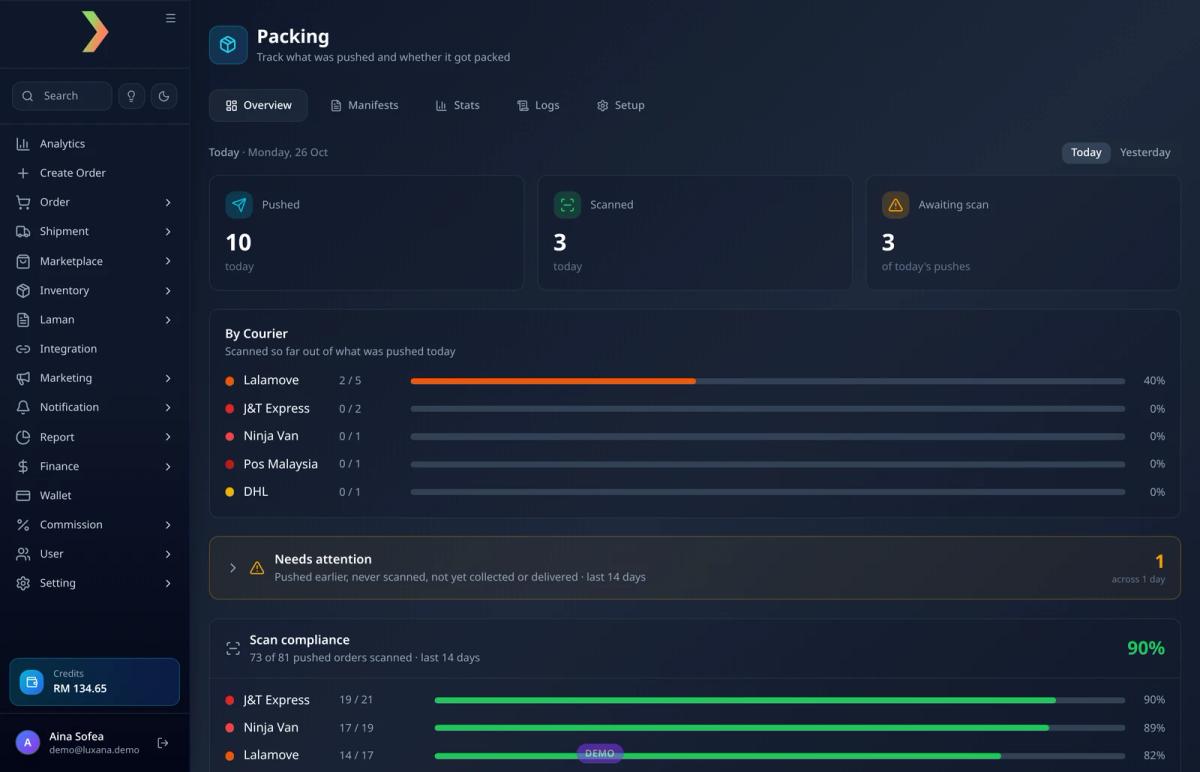
The Luxana packing overview shows exactly this: how many orders were pushed to couriers today, how many were scanned, and how many are still waiting, split by courier. A Needs attention list flags orders that were pushed earlier but never scanned and not yet collected or delivered, and scan compliance shows what share of pushed orders were actually scanned over the last 14 days.
If wrong items are already a problem in your store, our guide on how to reduce wrong packing and returns goes deeper on the checks that catch them.
Step 6: Hand over to the courier with a manifest
At the handover zone, keep parcels grouped by courier and create a manifest for each pickup: a list of the parcels that rider is taking. When the rider arrives, you hand over the batch, mark the manifest as handed over, and you have proof of what left your warehouse and when.
In Luxana, the Manifests tab groups orders that are ready by courier, lets you create a manifest for each courier, and keeps a history of past manifests with how many orders each one held and when it was handed over.
Step 7: Track packing performance every week
Once packing is recorded per order, you can manage it with numbers instead of feelings. Keep the list short and review it weekly:
| Metric | Why it matters |
|---|---|
| Orders packed per day | Shows whether your team keeps up with incoming orders |
| Orders packed per packer | Helps you plan shifts and spot who needs training or support |
| Orders by station | Shows where work piles up, such as a slow QC step |
| Scan compliance | Tells you how many parcels left without a record |
| Pushed but not scanned | Catches parcels that may be stuck or lost before customers complain |
| Wrong item or missing item rate | The quality number your customers actually feel |
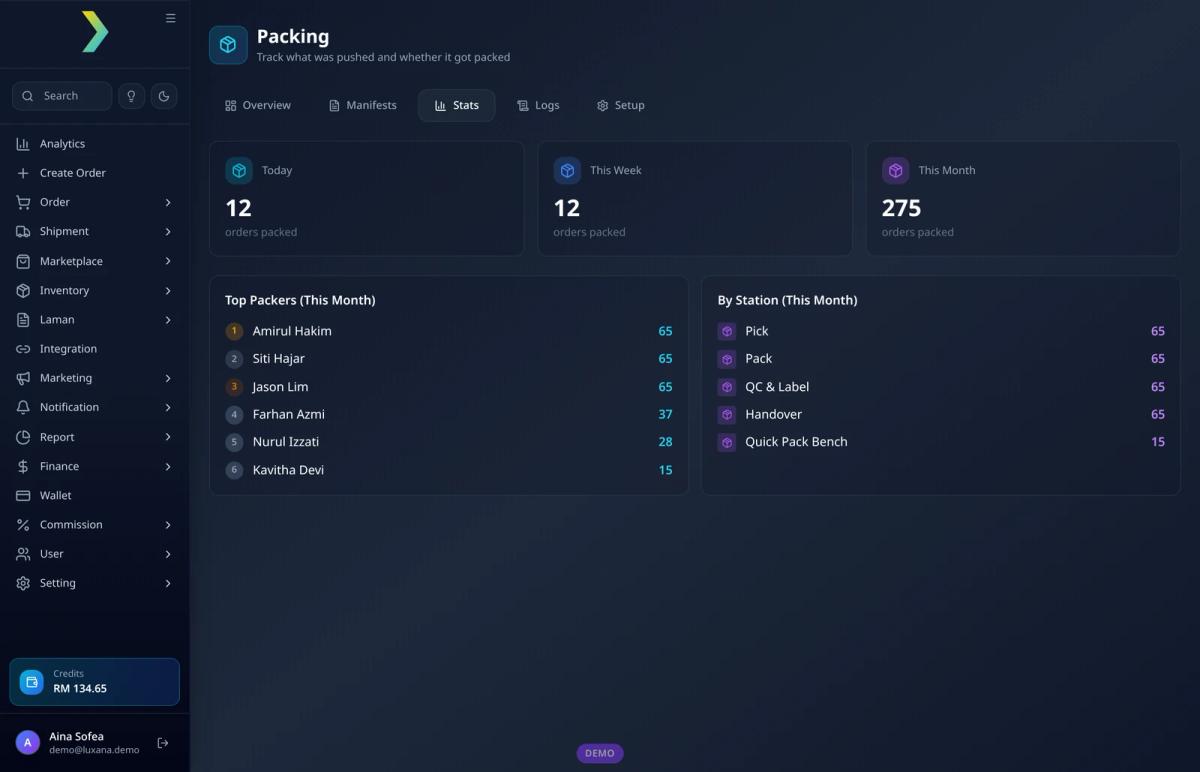
Luxana’s packing Stats tab shows orders packed today, this week and this month, a ranking of top packers, and how many orders passed each station. The Logs tab keeps a history of pack scans and of admin changes to stations, packers, devices and manifests.
Common packing station mistakes to avoid
- Mixing returns with fresh stock. Returned parcels should be checked in a separate area before going back on the shelf.
- Printing every AWB at once. A big stack of labels with no batch or order sequence is how labels end up on the wrong parcel.
- No fixed cut-off time. Without one, packers start and stop all day and couriers wait.
- Different setups on every bench. It slows down anyone covering for a colleague.
- Skipping the scan when it gets busy. Busy days are exactly when mistakes happen.
Frequently asked questions
How many packing stations does a small online store need?
Start with one well-equipped bench and split the work by time if you have a small team, for example picking first, then packing, then labelling. Add a second bench or a separate QC and label table when orders start waiting on one step.
Do I need a barcode scanner to pack orders?
A scanner is the fastest option, but many teams start with a phone. What matters is that every parcel is scanned and recorded before it leaves, whatever device you use.
What is the difference between picking and packing?
Picking is collecting the right items from the shelves. Packing is wrapping and boxing them into a parcel for one order. Keeping the two steps separate, with a check in between, is what reduces wrong items.
How do I stop parcels going missing between packing and courier pickup?
Scan every parcel at the QC or label station, keep sealed parcels in a handover zone sorted by courier, and use a manifest at each pickup. Any order that was pushed to a courier but never scanned should be checked the same day.
Pack and hand over every order from one system
Luxana is a Malaysian order management system (OMS) that brings orders, stock, couriers, AWBs, packing scans, manifests and an official WhatsApp CRM into one place. If your packing area still runs on paper lists and memory, see how Luxana works and give every parcel a record from shelf to courier.
Read also: E-commerce Order Fulfillment in Malaysia: The Complete Guide | Cara Kurangkan Salah Pack dan Return dalam Gudang | Cara Scale Bisnes Tanpa Tambah Staff | Cara Urus Stok Bisnes Online Tanpa Terlebih Jual

Run orders, couriers and WhatsApp in one place
Built for Malaysian online sellers. Set up in an afternoon.


