What Is an AWB? How to Generate and Print Shipping Labels in Bulk for Your Online Store (2026)
A practical guide for Malaysian online sellers: what an AWB (airway bill) is, what's printed on a shipping label, why AWB printing becomes a bottleneck, and a step-by-step routine to generate and print AWBs in bulk by courier.
- Published
- Reading time
- 11 min read
- Language
- English

On this page 10 sections
- What is an AWB?
- What's printed on a typical AWB
- Why printing AWBs becomes a bottleneck
- How to generate and print AWBs in bulk: step by step
- Before you print: a quick checklist
- Thermal printer or A4? Choosing your label setup
- Common AWB mistakes (and how to avoid them)
- Doing this in an order management system
- Frequently asked questions
- Read also
If you ship more than a handful of parcels a day in Malaysia, you've heard the word "AWB" a hundred times. "Dah print AWB?" "AWB tak keluar." "Customer tanya nombor AWB." But what exactly is an AWB, and why does printing it turn into a daily bottleneck once orders pick up?
This guide explains what an AWB is in plain terms, what's printed on a typical shipping label, and how to generate and print AWBs in bulk without copy-pasting addresses into courier portals one order at a time. It's written for Malaysian online sellers who ship through more than one courier and sell on more than one channel.
Quick answer: In Malaysian e-commerce, an AWB is the courier's shipping label (consignment note) for one parcel. It carries the tracking number, a barcode, the recipient and sender details, and the COD amount if any. To print AWBs in bulk, check orders first, assign each one a courier, generate the labels in one batch per courier, then print and pack in the same order the labels came out.
What is an AWB?
AWB stands for air waybill. Strictly speaking, it's a document used in air freight. In day-to-day Malaysian e-commerce, sellers and couriers use "AWB" more loosely to mean the shipping label you stick on a parcel, whether the parcel flies or goes by road. You'll also hear it called a consignment note, waybill, CN or shipping label.
Whatever you call it, it does three jobs:
- It creates the shipment in the courier's system. Until an AWB exists, the courier doesn't know your parcel is coming.
- It gives the parcel an identity. The tracking number on the AWB is how the courier, you and your customer follow the parcel.
- It tells the courier where to take it. Hub staff scan the barcode and read the address and routing code to sort it.
So one order normally means one AWB and one tracking number. A multi-box order may need more than one label, depending on the courier.
What's printed on a typical AWB
Each courier has its own layout, but most shipping labels carry the same core fields.
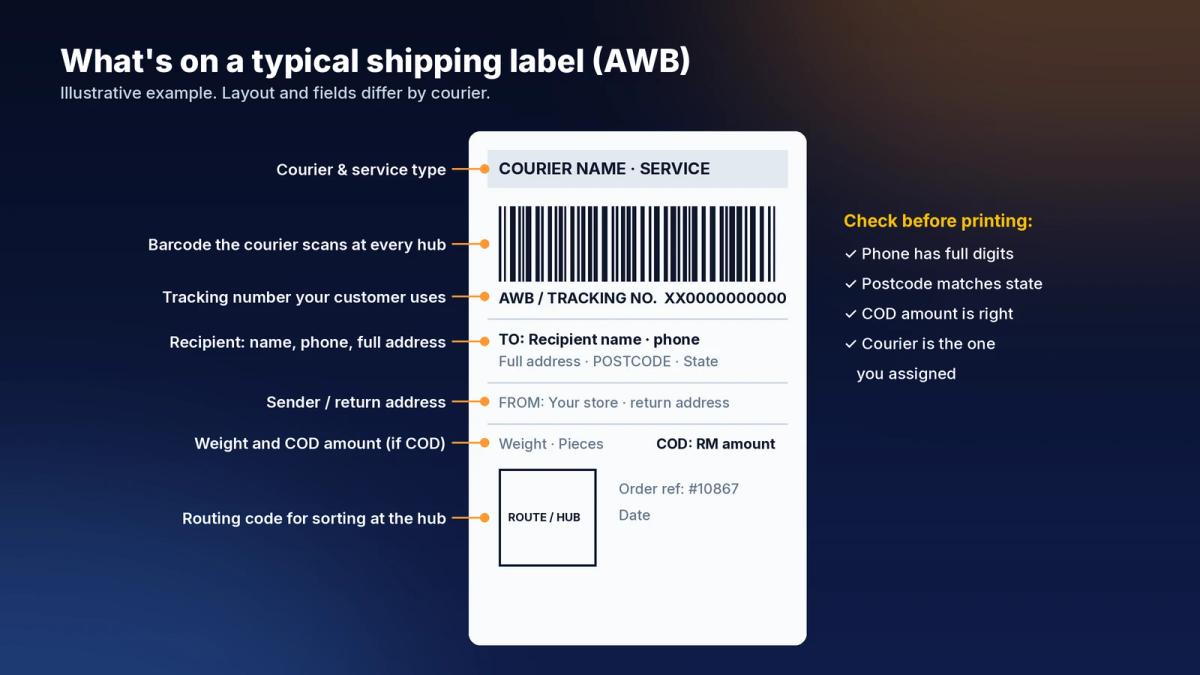
An illustrative example of the main fields on a shipping label. Your courier's layout will look different.
| Field | What it's for | What goes wrong if it's wrong |
|---|---|---|
| Courier and service type | Tells hub staff which network and service the parcel is on | Parcel handed to the wrong courier at pickup |
| Barcode | Scanned at every hub and on delivery | Unreadable barcode means manual handling and delays |
| AWB / tracking number | What you and your customer use to track | Customer can't track, more "parcel saya mana?" chats |
| Recipient name, phone, address, postcode | Where the rider delivers | Failed delivery or return to sender |
| Sender / return address | Where the parcel goes if it can't be delivered | Returns go missing |
| Weight and pieces | Used for billing and handling | Surcharges if declared weight is far from actual |
| COD amount (if COD) | What the rider collects at the door | Customer disputes, short collection |
| Routing or hub code | Helps the courier sort the parcel quickly | Parcel sent to the wrong hub |
Most of these fields come from your order. That's the key point: an AWB is only as good as the order data behind it. A missing digit in a phone number or a postcode that doesn't match the state will be printed faithfully onto the label and carried all the way to a failed delivery.
Why printing AWBs becomes a bottleneck
At 10 orders a day, keying each order into a courier portal is annoying but doable. As orders grow, the same manual routine causes the same problems every day:
- Copy-paste errors. Every address typed or pasted again is a chance to get it wrong.
- Too many portals. Each courier has its own website or app, so your team keeps switching tabs and logins.
- Labels out of order. Labels print in a different order from your pick list, so packers hunt for the right label for each parcel.
- No clear "done" list. Nobody is sure which orders already have an AWB, so some get two and some get none.
- Tracking numbers stuck in the portal. Your customer service team has to look up tracking numbers by hand when customers ask.
If this sounds familiar, the fix isn't a faster printer. It's changing the order of the steps.
How to generate and print AWBs in bulk: step by step
Here's a routine that works whether you ship 50 or 5,000 parcels a day.
- Set a daily cut-off. Decide the time after which new orders roll over to tomorrow's batch, for example a little before your courier pickup. A fixed cut-off stops half-finished batches.
- Check orders before you generate anything. Hold orders with an incomplete phone number, a vague address, a postcode that doesn't match the state, or a bank transfer with no receipt. It's much cheaper to fix an order now than after the label is printed.
- Assign a courier to every order. Use simple rules, such as by state, parcel weight, sales channel or postcode, rather than deciding order by order. Our guide to choosing couriers covers how to set those rules up.
- Group the batch by courier. Generate AWBs for each courier's orders together. This keeps each courier's parcels together on the packing table and at pickup.
- Generate the AWBs in one go. Create all the labels for the batch at once, and make sure each tracking number is saved against its order automatically.
- Print in pick order. Print each courier's labels in one run and use them as your pick list, so packers work through the pile in the same order.
- Pack, scan and stick. Scan the label and the items at packing so the right label goes on the right parcel. Our packing station guide shows how to lay this out.
- Hand over and close the batch. Count parcels per courier at pickup and mark the batch as handed over, so tomorrow starts with a clean list.
Tip: Keep "Not generated" and "Generated" as two separate lists. Before pickup, the "Not generated" list for today's cut-off should be empty, or every order left on it should have a reason.
Before you print: a quick checklist
Run through these before every batch. It takes a few minutes and saves hours of chasing failed deliveries later.
- [ ] Phone number has the full number of digits and the right prefix
- [ ] Postcode matches the state and city
- [ ] Address has a unit or house number, not just a taman name
- [ ] COD amount matches the order total the customer agreed to
- [ ] Each order has the courier your rules assigned
- [ ] Parcel weight is close to what you declare
- [ ] No order in the batch already has an AWB from an earlier run
If failed deliveries are already a problem, our guide on rescuing failed deliveries before they become returns explains what to do after the first failed attempt.
Thermal printer or A4? Choosing your label setup
Your setup depends on volume and on what your couriers support. Many couriers accept a 100 x 150 mm (4 x 6 inch) thermal label, but check each courier's label size before you buy supplies.
| Setup | Good for | Watch out for |
|---|---|---|
| A4 laser or inkjet, cut by hand | Very low volume, just starting out | Slow, ink and paper costs, labels cut unevenly |
| A4 sticker sheets | Low volume, no extra hardware | Labels must line up exactly with the sheet layout |
| Thermal label printer | Daily shipping at any real volume | Labels can fade with heat and sunlight, so keep spare rolls dry and cool |
Whichever you use, print a test label whenever you change label size or switch couriers, and check the barcode scans before you print a full batch.
Common AWB mistakes (and how to avoid them)
- Printing before checking the order. Fix bad addresses and phone numbers before the label exists, not at the customer's door.
- Generating twice for the same order. Always check the "generated" list first, or you may pay for a shipment you never send.
- Mixing couriers in one pile. Parcels end up with the wrong rider at pickup. Keep one pile, or one cage, per courier.
- Wrong COD amount. If the amount on the label is wrong, the rider collects the wrong amount. Check COD totals after any order edit.
- Tracking numbers that never reach the order. If tracking only lives in the courier portal, your team can't answer customers quickly and you can't send automatic updates.
- Labels that don't stick. Sticking a label over a seam or on a curved, dusty surface is a common reason barcodes can't be scanned. Stick it flat on the largest face of the parcel.
Doing this in an order management system
Doing all of this across several courier portals and a spreadsheet is where most of the errors come from. An order management system (OMS) that connects to your couriers lets you check orders, assign couriers, generate AWBs and keep tracking numbers in one place.
In Luxana, the Generate Airway Bills page lists orders with their customer, payment type, status and assigned courier. You can filter by country, state, courier, brand or product combo, switch between Not Generated and Generated, and generate AWBs for the orders you select. The tracking number then appears on each order.
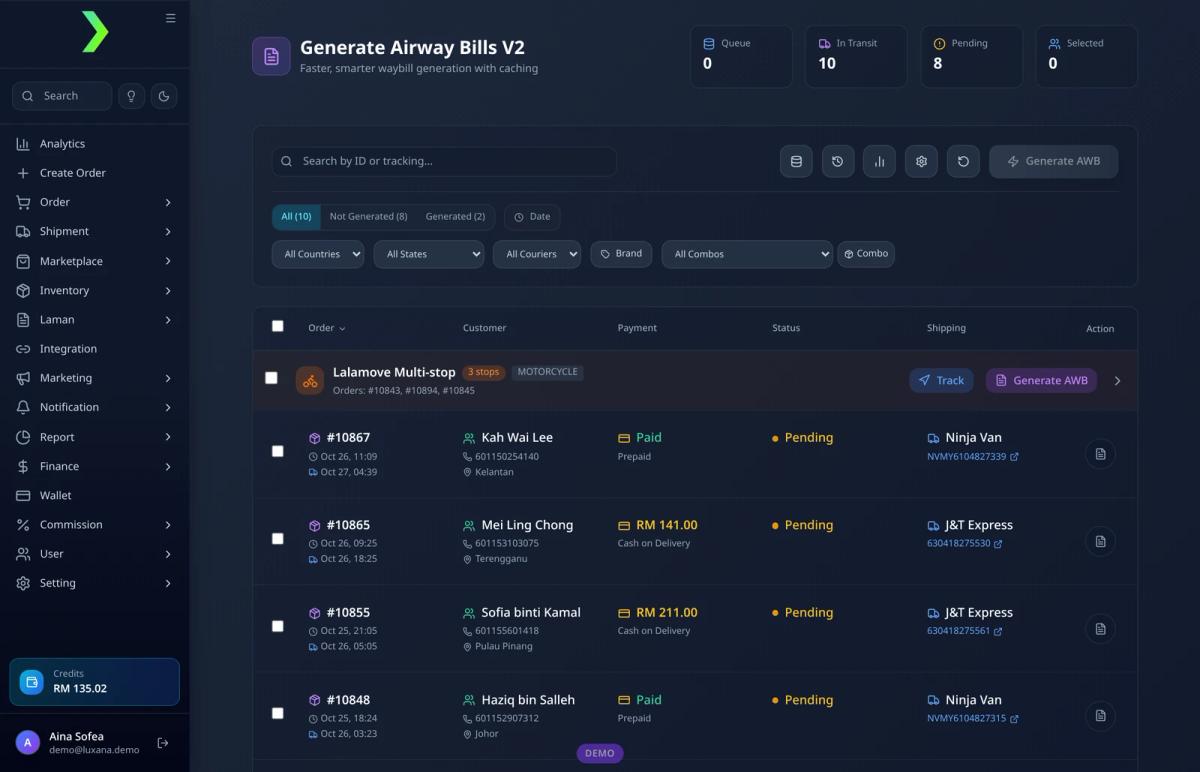
Generate Airway Bills in Luxana: filter orders, see which already have an AWB, and generate labels for many orders at once (demo data).
For daily batches, Batch Push lets you filter pending orders by courier, payment type, brand, state or bundle, group them by courier or country, and push the batch to the couriers. Recent Batches shows how many AWBs were generated for each batch and lets you download, or re-download, that batch's labels, so the labels come out already grouped.
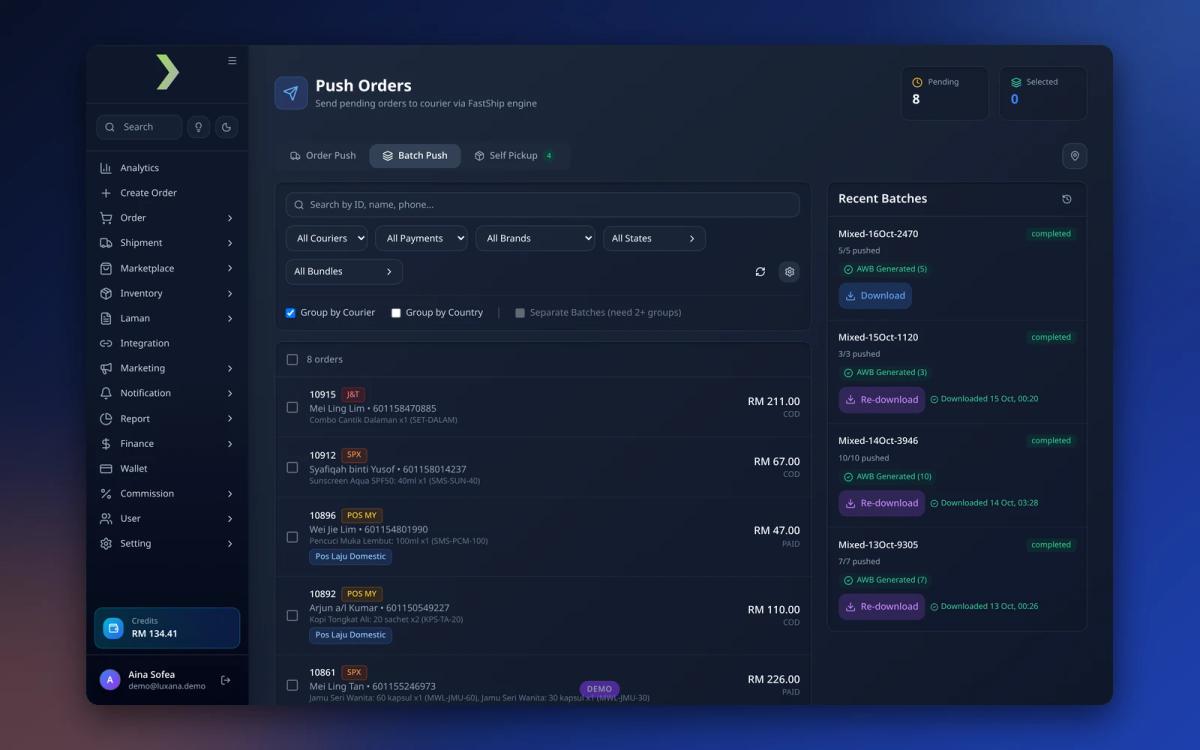
Batch Push in Luxana: group pending orders by courier, push them, then download the AWBs per batch (demo data).
Because courier assignment can run on rules, many orders already have the right courier before your team opens the screen. Our complete guide to order fulfillment in Malaysia shows where AWB printing fits into the full flow from order to delivery. And once tracking numbers are saved against each order, you can send WhatsApp order notifications with the tracking link automatically.
Frequently asked questions
What does AWB mean in shipping?
AWB stands for air waybill. In Malaysian e-commerce, people use it to mean the courier's shipping label or consignment note for a parcel. It carries the tracking number, barcode, recipient and sender details, and the COD amount if the order is cash on delivery.
Is the AWB number the same as the tracking number?
For most domestic courier shipments, yes. The number printed on the AWB is the number you and your customer use to track the parcel. Some couriers also print a separate reference, so check your courier's label if you're unsure.
Can I print AWBs for different couriers at the same time?
Yes, but group them by courier. Generate and print each courier's labels as its own batch, so parcels for each courier stay together at packing and pickup.
What label size should I use?
Many couriers support 100 x 150 mm (4 x 6 inch) thermal labels, but sizes differ. Check each courier's requirements before you buy a printer or label rolls.
What if I printed an AWB with the wrong address?
Don't send the parcel with that label. Fix the order, cancel or void the old shipment with the courier if possible, and generate a new AWB. Check your courier's cancellation rules, since some may charge for shipments that were created but not sent.
Read also
- Cara Pilih Kurier untuk Bisnes Online: Panduan Multi-Kurier
- How to Calculate Shipping Costs for Your Online Store in Malaysia
- Parcel Gagal Dihantar? Cara Selamatkan Order Sebelum Jadi Return
- How to Set Up an E-commerce Packing Station
- E-commerce Order Fulfillment in Malaysia: The Complete Guide
Luxana is a Malaysian order management system (OMS) that brings orders from all your channels, courier assignment, bulk AWB generation, packing and a CRM with official WhatsApp into one place. If your team still prints AWBs one by one from different portals, see how Luxana handles it.
- awb
- airway-bill
- shipping-label
- courier
- bulk-printing
- malaysia

Run orders, couriers and WhatsApp in one place
Built for Malaysian online sellers. Set up in an afternoon.


